LEGO Instructions Download Guide: PDFs and Apps
The official instructions page is the fastest route: find the set number, search it, download the PDF. For retired sets that the official page no longer lists, third-party archive sites usually still hold them. In practice that recovers the manual for well over nine sets in ten — and the version you want is always the highest-resolution one, because a manual you cannot zoom into is a manual you cannot build from.
Everything below covers where the number is printed, how the formats differ, how to set up a screen or a printout for building, and what to do when the manual you download is missing a page.
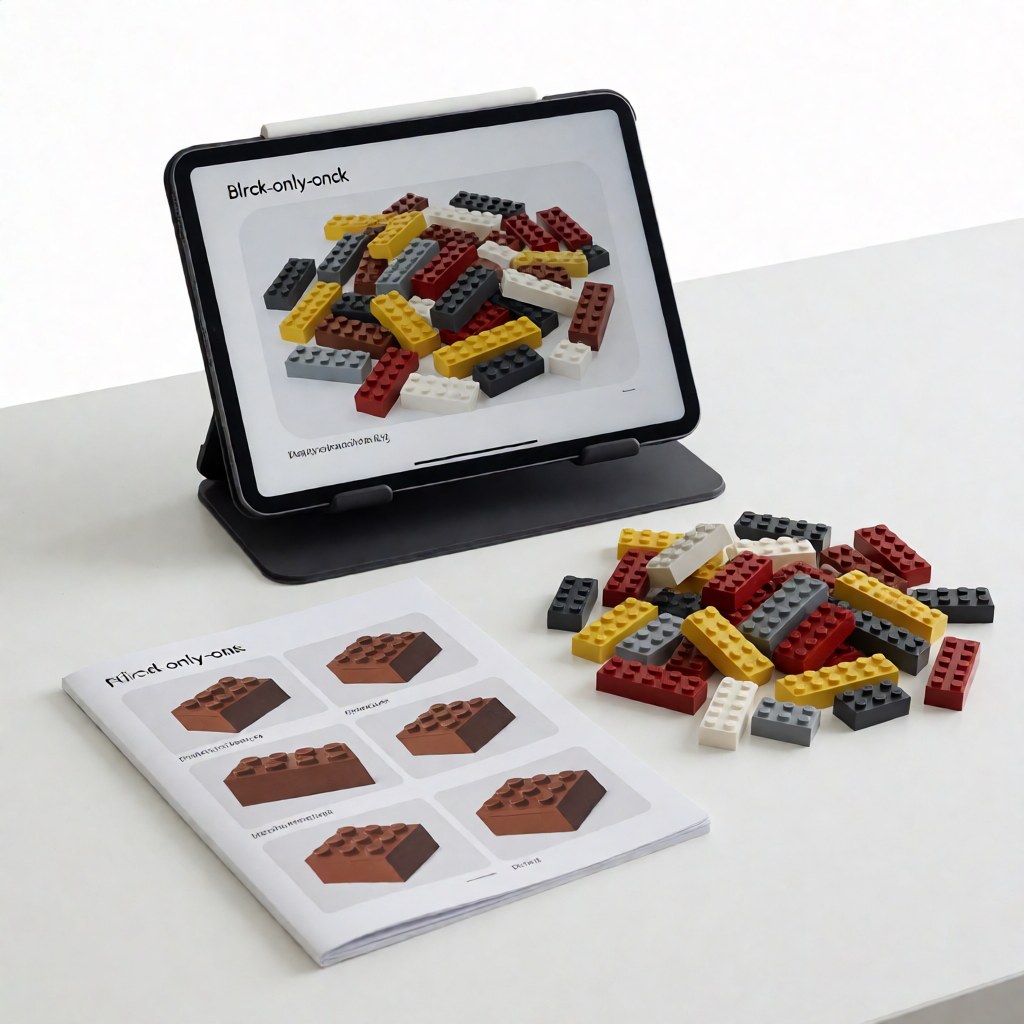
Step one: find the set number
A set number is five or six digits — 10276, 42115, 75978 — and it appears in more places than most people realise:
- On the box, usually near the barcode and again on the front panel.
- On the cover of the paper manual, printed next to the model name.
- Inside a minifigure. Turn a figure upside down; the number is often moulded or printed on the leg or the back of the torso.
- On the sticker sheet, if the set has one.
Names differ between regions and languages, so a name-based search can miss. The number cannot.
Step two: the official download
The official service page takes a number or a name and returns the matching instruction file. Three steps:
- Enter the set number.
- Confirm the set from the result — check the part count as a sanity test, since similar sets share a family look.
- Preview in the browser, then download the PDF if the details survive zooming.
What this route gives you: high-resolution pages, the official sequence, and a parts callout page at the back listing every element with its quantity. What it does not give you: original designs. Official sets only.
Typical file weight for a large set is 20–60 MB. That is comfortable on a desktop and slow on mobile data, so download on Wi-Fi if you plan to read it on a tablet.
Step three: retired sets
When the official page no longer lists a set, archive sites fill the gap. These catalogues index plans by brand, theme and set number, and their coverage of older and discontinued sets is often wider than the official page. Two practical notes:
- Check the two-digit year on the layout if the site shows one. Some old manuals were revised mid-production, and the parts list changed between revisions.
- Prefer a scan over a re-typeset copy. Rebuilt digital manuals occasionally simplify the step silhouettes, and the simplification hides the exact geometry you need.
Formats compared
| Format | Offline? | Zoom quality | Interactivity | Best for |
|---|---|---|---|---|
| Official PDF | Yes, once saved | Excellent | None | Printing, big builds, archiving |
| Official app | Partly | Excellent | 3D rotate, animated steps | Dense sub-assemblies |
| In-browser viewer | No | Good | Page through | Quick checks on desktop |
3D design file (.io, .ldr) |
Yes | Vector, endless | Full rotation and editing | Modifying a design |
| Image series | Yes | Depends on the uploader | None | Phone reference on the go |
Pick one rule and it stays simple: print or save a PDF for anything over 500 parts; use an app view for sub-assemblies that are ambiguous in two dimensions; use a 3D file only if you intend to change the model.
Reading the manual the way it was designed to be read
Official manuals follow a consistent grammar, and once you notice it, the pages get faster:
- The parts callout at each step is what you pick up before the step image. Lay those parts out first; do not hunt for them mid-step.
- Silhouettes of parts already in place tell you which sub-assembly you are adding to. If nothing matches, you are on the wrong step.
- A circled multiplier means the sub-step repeats. Builder error usually starts here: people build one and forget the rest.
- Mirrored sub-assemblies are not always drawn twice. Look for a note rather than a second diagram.
- Sub-assembly boxes mean build the small cluster separately, then attach it. Building such a cluster in place is much harder.
- The final callout page is your completeness audit before the model is closed up.
Setting up a build screen or a printout
Small setup decisions remove most frustration later:
- Print at 100%, never "fit to page". Scaling down shrinks the callouts, and callouts are where errors originate. If paper size forces a scale, split the step across two sheets instead.
- Use matte paper for large manuals. Glossy sheets reflect ceiling light at exactly the wrong angle.
- On a tablet, lock the zoom so successive pages are legible without pinch-zooming each one.
- Warm colour temperature and moderate brightness are easier on the eyes over a multi-hour session than a cold, bright screen.
- Keep the device plugged in. A dead tablet at step 400 is a genuine inconvenience on a long build.
Replacing missing parts while the manual is open
The manual's callout page doubles as an inventory. When a bag turns out short:
- Count the callout quantities for the missing element and note the design ID — the five-digit shape number, not the colour name.
- Order by design ID plus colour code; suppliers index by number, not by description.
- For current sets, the official replacement service ships missing parts free within a limited window, and it asks for the set number and the element number, both of which are now in front of you.
- If the part is discontinued, a compatible-brand substitute usually works for structure; for a visible face, order the exact colour.
Archiving so the next build is easy
- Name the file
10276-ferris-wheel-v1.pdf. A date-stamped or download-generated name becomes unfindable within a month. - Keep the manual and the parts list in the same folder. They are always needed together.
- Back the folder up. Manuals are far easier to lose than bricks.
- Note the source. Whether a file came from the official page or an archive matters when you later need an authorised copy.
Digital versus the printed original
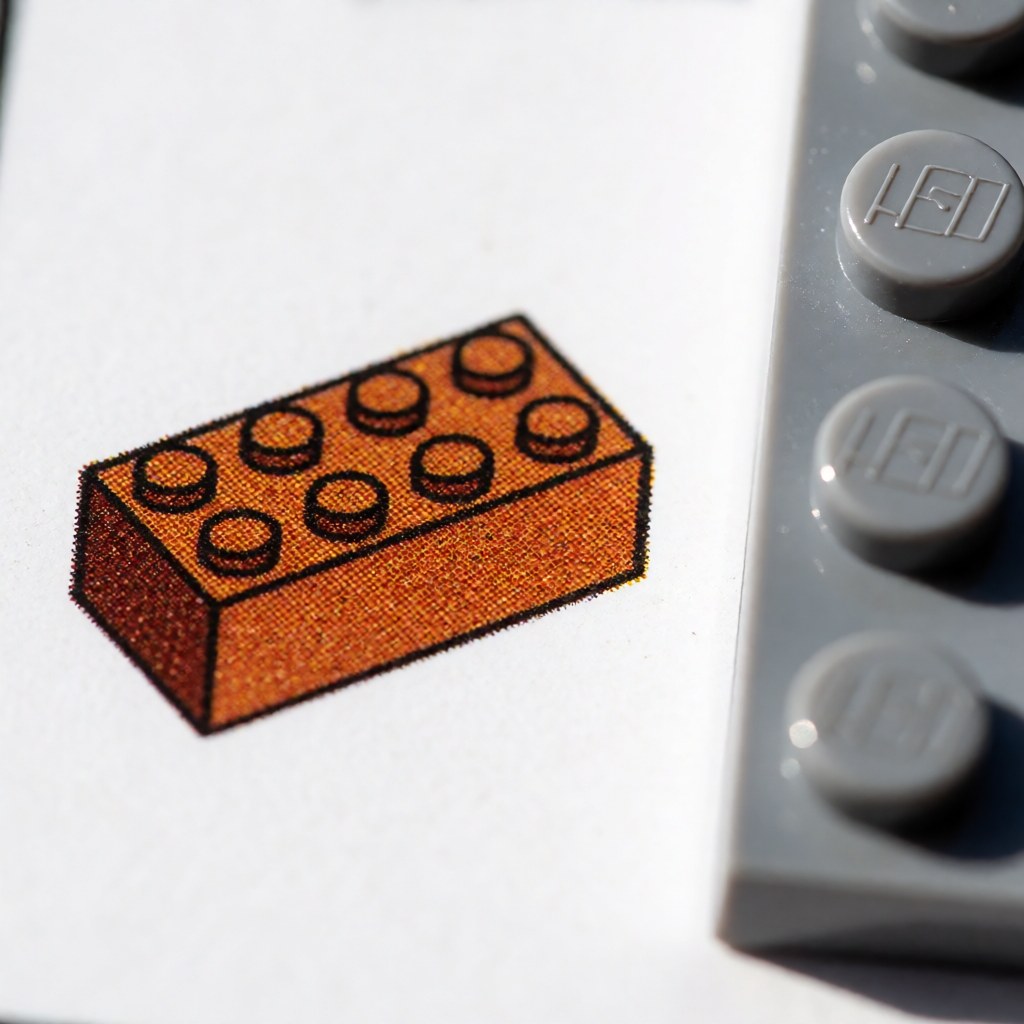
Most sets still ship with paper, and the digital copy is not always identical. Four differences worth knowing:
- Page order is the same, but pagination differs. A PDF page number rarely matches the printed page number, so "go back to page 12" means different things in the two versions.
- Digital copies get revised. Paper does not. If a step looks subtly different in your PDF than on a photograph of the printed manual, the digital file is the newer one.
- Printed manuals omit the parts callout page in some recent sets, because the app covers it. If your build needs the inventory, use the PDF.
- Digital is searchable. Searching a design ID across a 200-page manual finds every step that uses that part — something paper cannot do at all.
For anything over 500 parts, keep both if you can: paper for the build surface, digital for searching.
Six checks before a long build
Run these in order and a large build stops surprising you:
- Open the last page. Confirm the finished model matches your expectation before you sort anything.
- Check the page count is complete. A truncated download usually fails near the end, at the worst moment.
- Verify the parts callout totals against the bags you have. Shortages found now can be ordered while you build the early sections.
- Identify the turn-over steps. Models get inverted for the underside, and knowing where helps you clear space in advance.
- Find the repeated sub-assemblies and build them in one batch rather than at each occurrence.
- Decide where you will pause. A build split at a stable sub-assembly survives being set aside for a week; a split mid-cluster usually does not.
Five pitfalls
- Downloading the wrong regional revision. Part lists occasionally differ between markets for the same set number.
- Trusting a tiny file. A 400 KB manual for a 1,500-part set is a downsized copy; the numbers will be unreadable.
- Skipping the completeness check. Verify the callout page before you begin, not after step 300.
- Building from a phone. It works for a 200-part model and fails badly on a dense one.
- Assuming an out-of-stock set has no manual. Archive sites usually have it even when the official page has rotated it out.
FAQ
Q: Can I still download instructions for a set LEGO no longer sells? A: Usually yes. Many retired sets remain on the official page, and archive sites cover most of the rest. Check both before concluding a manual is gone.
Q: Is the app better than the PDF? A: For dense sub-assemblies, often — rotating a step in 3D resolves ambiguities a flat drawing cannot. For long builds, a printed or tablet PDF remains faster to scan ahead in.
Q: Where is the set number if I no longer have the box? A: Try the minifigure leg, the back of a torso, or the first page of a printed manual. Failing all three, image search the finished model; someone will name the set number within a day.
Q: Why is my downloaded manual missing pages? A: Either the source file is damaged or the set had a documented revision. Download from a second archive and compare page counts before starting the build.
Save the manual properly once and you never search for it again. Browse the BrickPlan blueprint library when you want a plan for a model that never shipped with a manual.