BrickPlan Beginner Guide: Register, Find and Download MOC Plans
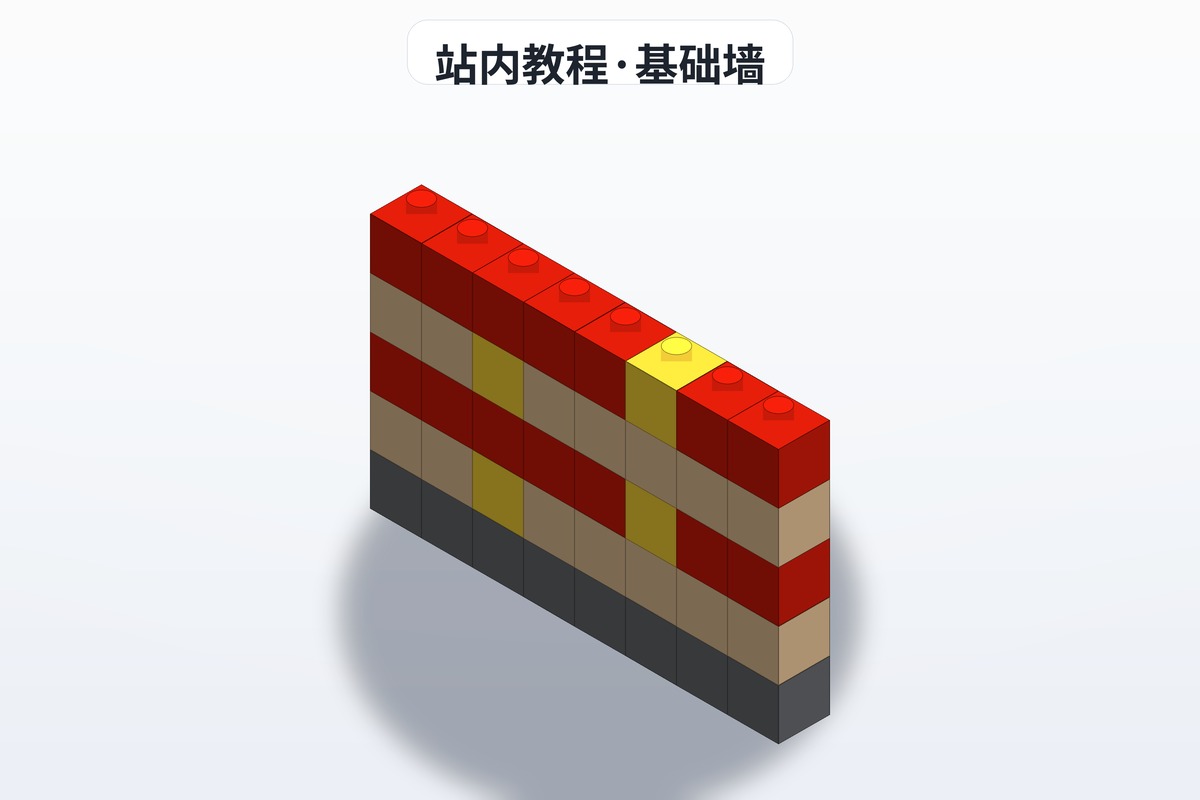
If you just opened BrickPlan for the first time, don't start clicking around at random. Walk through it once from top to bottom and you'll know your way around in about five minutes.
New builders can simply follow along. If you've been at this a while, skip straight to the "Finding Plans" section. Everything below runs in order: registering, finding plans, downloading, building, uploading.
1. What Is BrickPlan?
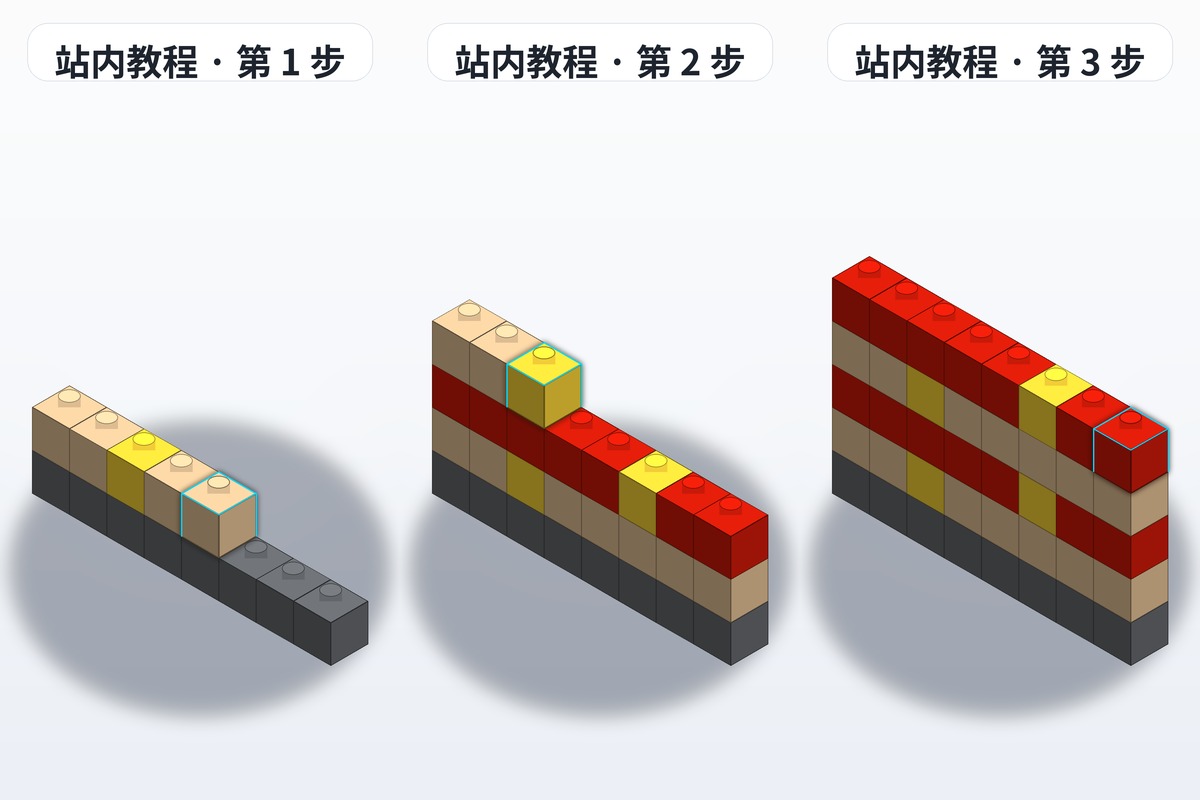
BrickPlan is a brick-plan sharing community built around MOC instructions. On the site you can:
- Browse a large library of MOC plans (architecture, vehicles, mechs, fantasy, sci-fi, dioramas)
- Download PDF instructions and parts lists
- Upload your own MOCs and share them with other builders
- Interact — like, favorite, comment, and follow creators you enjoy
2. Creating an Account
Step 1: Go to the Site
Open your browser and visit https://brickplan.cn (or the server IP plus port, if you're on a self-hosted instance).
Step 2: Sign Up
- Click the "Register" button in the top right
- Enter a username (2–20 characters; Latin letters and Chinese characters are both accepted)
- Enter your email address
- Set a password (at least 8 characters)
- Click "Register" to finish
Step 3: Complete Your Profile
After registering, it's worth filling in:
- Avatar: gives your account some personality
- Bio: describe your building preferences (architecture? mechs? sci-fi?)
- Profile page: other builders who click your name can see the full collection of your work
3. Finding Plans
Method 1: Browse by Category
On the homepage or the "Explore" page, plans are grouped into 6 categories:
| Category | Typical models | Who it suits |
|---|---|---|
| 🏛️ Architecture | Castles, villas, shrines | Architecture fans |
| 🚗 Vehicles | Race cars, trucks, motorcycles | Car model fans |
| 🤖 Mechs | Assault mechs, ninja mechs | Mech fans |
| 🐉 Fantasy | Dragons, unicorns, dwarf blacksmith shops | Fantasy fans |
| 🚀 Sci-fi | Star cruisers, space bases | Sci-fi fans |
| 🌴 Dioramas | Pirate bays, convenience stores, amusement parks | Diorama builders |
Method 2: Search
Type a keyword into the search box — something like "castle," "mech," or "cyberpunk" — and the system matches against titles and descriptions.
Method 3: Filter by Difficulty
Every plan carries a difficulty rating from 1 to 5 stars:
| Difficulty | Meaning | Recommended for |
|---|---|---|
| ⭐ | Beginner (300–500 pieces) | Complete newcomers |
| ⭐⭐ | Easy (500–1000 pieces) | Builders with some experience |
| ⭐⭐⭐ | Intermediate (1000–2500 pieces) | Intermediate builders |
| ⭐⭐⭐⭐ | Upper intermediate (2000–4000 pieces) | Experienced builders |
| ⭐⭐⭐⭐⭐ | Expert (4000+ pieces) | Hardcore builders |
Beginner advice: start with a ⭐ or ⭐⭐ plan so you can experience the full build process first.
4. Reading a Plan's Detail Page
Click a plan card to open its detail page. Here's what you'll find:
Basic Information
- Title: the name of the plan
- Author: the creator's name
- Category: which category it belongs to
- Difficulty: 1–5 stars
- Piece count: the exact number of parts
- Published: the date the plan was uploaded
Content Area
- Photo gallery: multiple shots of the finished model from different angles
- Description: a detailed write-up of the build's tricky spots, its standout parts, and who it suits
- Parts list: every required part, grouped by category
Interaction Area
- Like: show your appreciation
- Favorite: save it to your favorites folder
- Comment: ask the author questions or share your thoughts
- Share: copy the link and send it to a friend
5. Downloading Plans
How to Download
- Find the "Download plan" button on the detail page
- Clicking it downloads the building instructions as a PDF
- A parts list is provided alongside it (BrickLink format, so you can buy the parts easily)
File Format Reference
| Format | Contents | How to use it |
|---|---|---|
| Step-by-step images + parts list | Print it, or view on a computer or tablet | |
| Parts list | Part numbers + quantities | Use it to buy parts |
| Studio file (optional) | 3D model file | Open in BrickLink Studio |
A note on copyright: plans belong to their original authors. Don't re-upload them or use them commercially without permission.
6. Start Building
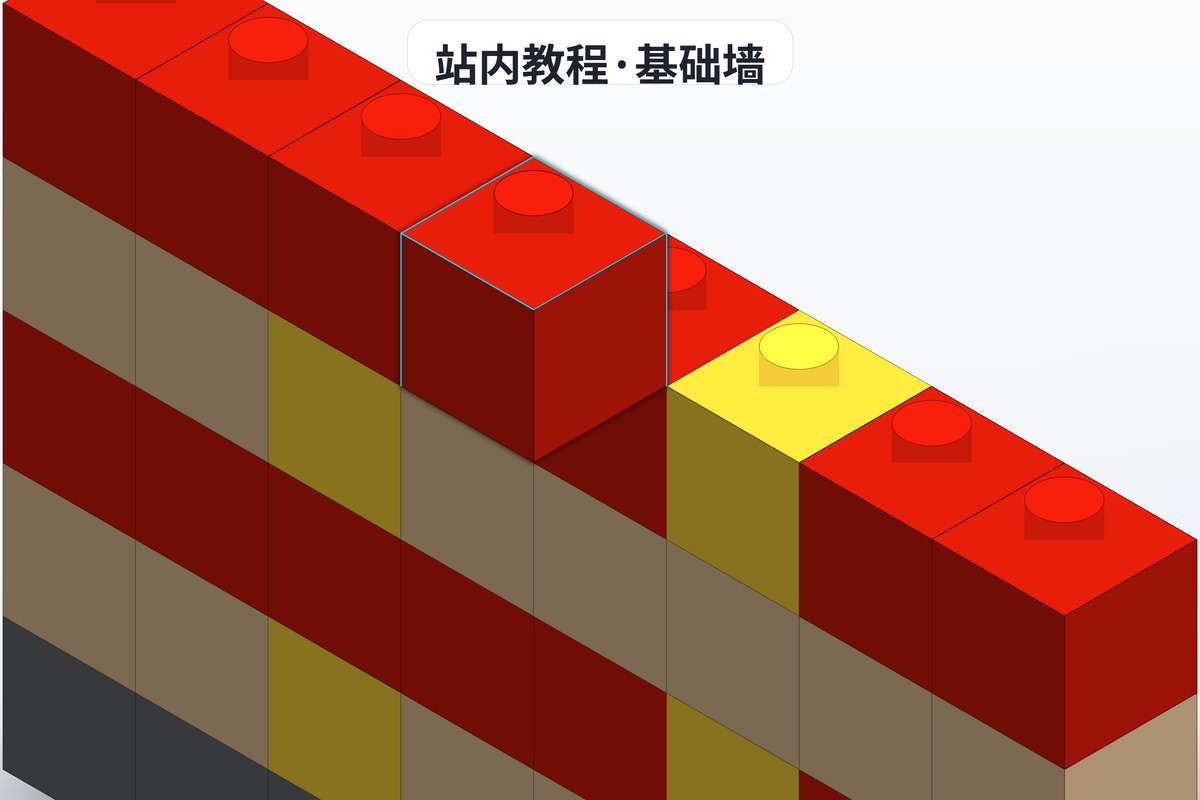
Getting Ready
- Check your parts: go through the parts list and confirm nothing is missing
- Prepare tools: sorting trays (sort by color or by type)
- Pick a workspace: a flat desk with plenty of light
- Open the plan: a tablet or computer is the easiest way to view it
Build Tips
- Follow the steps: don't skip ahead, and confirm each part is in the right place at every step
- Build in modules: for large models, complete them as sub-assemblies and join them at the end
- When you get stuck: read the notes under the step image first — most problems are already annotated on the plan
- Ask the community: post in the comments and the author or other builders will help you out
7. Uploading Your Own Work
Once you've finished a build, you can share your own MOC with the community too.
Upload Steps
- Register and log in
- Click the "Upload" button in the top right
- Fill in the details of your work:
- Title: give your model a name
- Description: explain the design thinking and the tricky parts of the build
- Category: choose the right one
- Difficulty: rate it from 1 to 5 stars
- Piece count: enter the exact number
- Tags: add keyword tags so people can find it
- Upload images (at least 1; 3–5 shots from different angles is recommended)
- Upload the plan PDF or Studio file
- Click "Publish"
Upload Tips
- The cover image matters enormously: pick your best-looking angle as the cover and click-through rates improve by 50%
- Write a detailed description: build difficulty, standout parts, finished photos, who it suits — other builders only dare download it if you spell this out
- Use precise tags: things like "cyberpunk," "street scene," "beginner friendly" make searching easier
8. Community Interaction
Likes & Favorites
- If you enjoy a piece of work, a like is the best encouragement you can give the creator
- Favorite the plans you like so you can find them again later
Comments
- Questions: if you hit a problem mid-build, ask the author in the comments
- Feedback: when you finish, post photos of your finished model
- Suggestions: offer ideas for improving the plan
Following
- Follow creators you like and get notified about their new work first
- Manage your follow list from your own profile page
9. FAQ
Q: What if a downloaded plan won't open? A: Open PDF files with your browser or a PDF reader. Studio files require BrickLink Studio to be installed.
Q: What if I don't have enough parts? A: Every BrickPlan plan comes with a parts list. Use it to buy the parts you need on Taobao, Xianyu, or from Gobricks.
Q: Can I upload someone else's work? A: Only upload your own original work. Reposting another person's model requires the original author's permission and clear credit.
Q: What if there's an error in a plan? A: Leave a comment to let the author know. They'll correct it and re-upload as soon as they can.
10. Leveling Up
Once you're comfortable with the basics, try:
- Take on harder builds: attempt 4–5 star plans to push your building skills
- Join community events: keep an eye out for official building challenges
- Become a creator: design your own MOCs in BrickLink Studio and upload them
- Build a following: keep publishing high-quality plans to grow your own audience
If something confuses you, just ask in the community — brick builders are a helpful bunch. As for the rest, build one model and it'll click on its own.